


-
Click Modification
 and select the surface.

You can also access this command by pressing SPACE. -
Click Alignment
 .
.You can also access this command by pressing CTRL+SHIFT+Q. When the Alignment command is activated, three new icons appear in the Tools Palette:

The following icons let you: -
 project
vertices onto the axis of the compass. When this option is
activated the following options are available for surface
selection: Edge Selection,
Vertex Selection, All
Elements Selection.
project
vertices onto the axis of the compass. When this option is
activated the following options are available for surface
selection: Edge Selection,
Vertex Selection, All
Elements Selection.
-
 project
vertices onto the plane of the compass. When this option is
activated the following options are available for surface
selection: All Type Selection,
Face Selection,
Edge Selection,
Vertex Selection,
All Elements Selection.
project
vertices onto the plane of the compass. When this option is
activated the following options are available for surface
selection: All Type Selection,
Face Selection,
Edge Selection,
Vertex Selection,
All Elements Selection.
-
 pick
one or more 3D elements in the 3D area to define the support of
projection.
pick
one or more 3D elements in the 3D area to define the support of
projection.
The other icons let you filter the type of aligning feature: surface, edge or vertex. -
-
Click Compass Definition
 to define the compass' position as shown.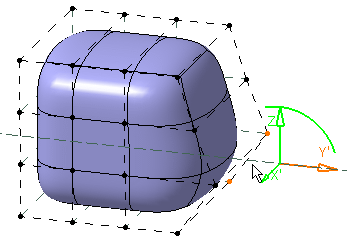
-
Click Compass Definition
again.
Projecting onto the axis
-
Click On Axis
. -
Select elements to be projected.
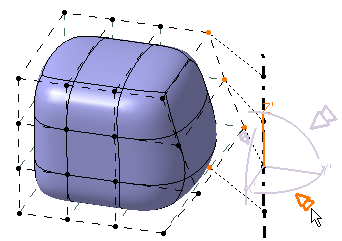
The manipulator arrows are displayed on each axis.
The manipulator is active when you are in the picking zone. You can click anywhere in the picking zone for modification.As you are in the picking area of the manipulator, the projection axis and traces of projections are viewed. This axis size is defined to include all the projected points. The interactive arrows' direction is normal to the plane (it indicates the direction of projection).
-
Click on the manipulator arrow depending on the direction where you want to align the vertex.
In this case, click on the interactive arrow as shown below: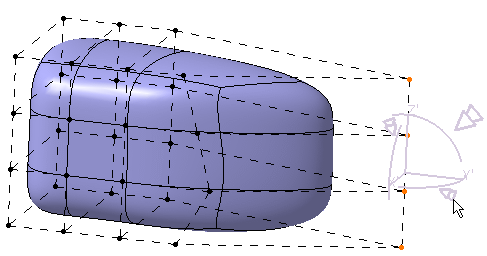
-
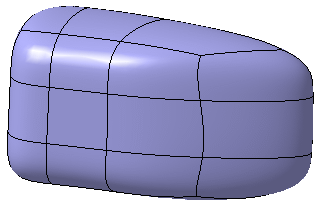
The selected elements are projected on the axis.
Here is the result:
Projecting onto the plane
-
Click On Plane
. -
Select elements to be projected.
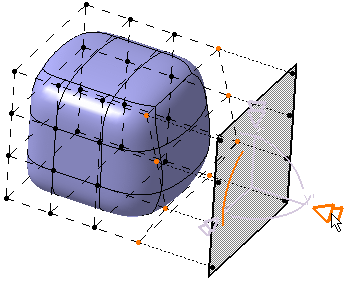
The manipulator arrows are displayed on each axis.
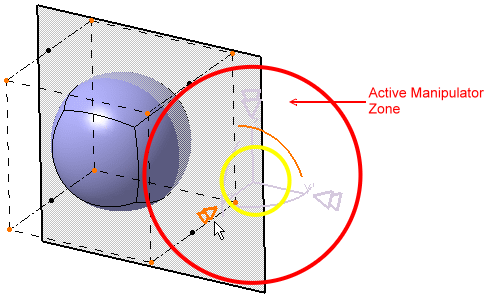
The manipulator is active when you are in the picking zone. You can click anywhere in the picking zone for modification.
As you are in the active manipulator zone, the projection plane and traces of projections are viewed. This plane size is defined to include all the projected points. The interactive arrows' direction is normal to the plane (it indicates the direction of projection). -
Click on the interactive arrow depending on the direction where you want to align the vertex.
In this case, click on the interactive arrow: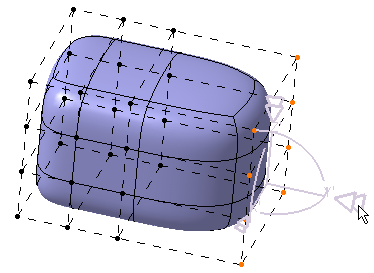
-
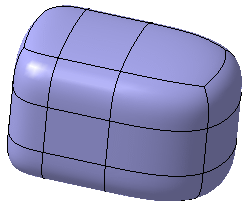
The selected elements are projected on the plane.
Here is the result:
Using Pick
-
Click On Plane
. -
Select the elements to be projected.
-
Click Pick
. -
Select the projection plane as shown.
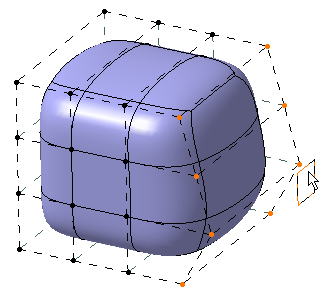
You can see that the projection of the selected element is made directly on this plane.
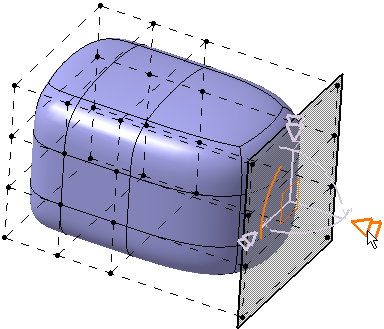
Here is the result: 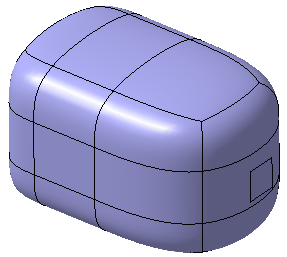
-
Click On Axis
. -
Select the elements to be projected.
-
Click Pick
. -
Select the projection line as shown below:
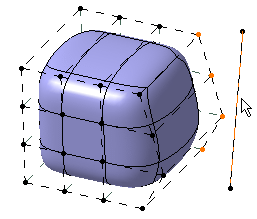
You can see that the projection of selected axis defined by the line is made directly after the line selection.
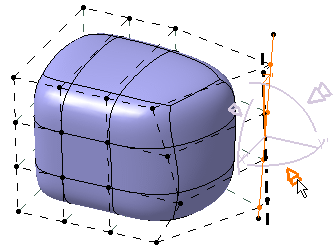
Here is the result: 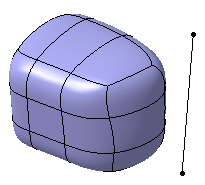

- In case you have clicked On Plane you can also pick a line to project on the plane.
- In case you have clicked On Axis you can also pick a plane to project on the axis.
- You can pick a line or plane to project on a point.
-
Ctrl and Shift keys are used for selection. When these keys are pressed, the manipulator is inactive even in the active manipulator zone.
-
If no element is selected for the projection, the manipulator is inactive even in the active manipulator zone.
-
-
-
It is not possible to project a face or an edge onto an orthogonal edge. An error message is displayed.
-
It is not possible to project two opposite edges of the same face onto a common axis. A similar error message is displayed.
