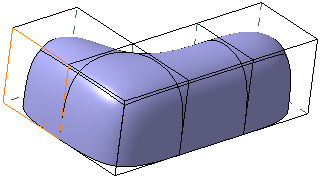
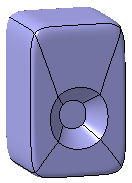
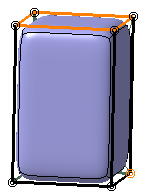
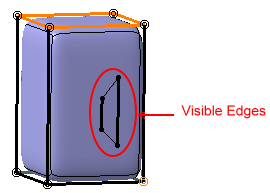
This task shows you how to hide already hidden elements when performing a selection, thus selecting only the visible elements in a subdivision surface.

Open the
ModifySurface5.CATPart
document.

-
Click Modification
 in the Modification toolbar.
 -
Select Subdivision Surface.1.
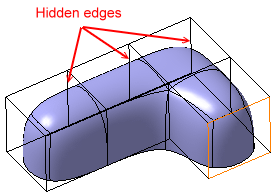
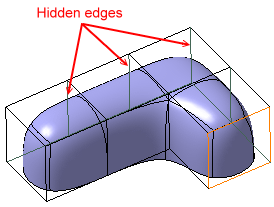
You can see that the hidden edges and vertices of the mesh are also visible and can be selected. Selection of visible elements thus becomes difficult. In this case the View and Selection All mode has been clicked
in the Operations toolbar.
mode has been clicked
in the Operations toolbar. 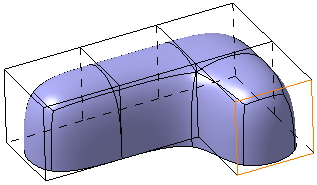
-
Click View and Selection All
in the Operations toolbar. 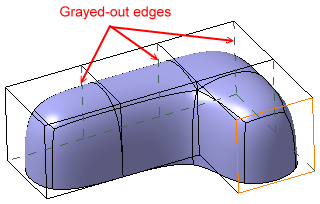
-
Click View All and Selection Front
 in the Operations toolbar. The View All and Selection
Front
icon state now changes to
View and Selection Front
in the Operations toolbar. The View All and Selection
Front
icon state now changes to
View and Selection Front
 .
.
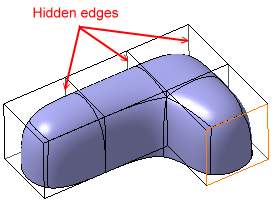
You can see that all the hidden edges covered by the subdivision surface are no longer visible. Some part of these hidden edges which is not covered by the subdivision are still visible in the mesh, but they are grayed out and are not selectable.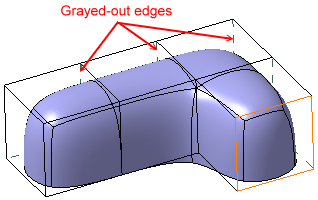
To go back to the initial state, click it again.
-
Rotate the subdivision surface or change its shape (in case of a modification). You can see that as the surface moves the relevant hidden edges are not visible. The selected edge remains highlighted and selectable even after rotation.