|
This task shows you how to:
|
 |
A
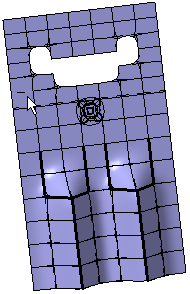
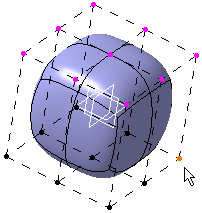
sphere with two cuts has been created. |
| |
Using Selection Icons
|
| |
This kind of selection enables a filter mode to select only specified
elements.
It is available using the Tools Palette, which appears when creating or
modifying a surface for instance, and when one of the transformation icons
(translation, rotation, affinity or attraction) is selected. |
| |
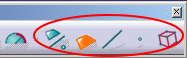
|
|
The following icons let you: |
| |
|
| |
-
 (Face
Selection): Select
faces only. The compass is aligned on the mean plane of the face. (Face
Selection): Select
faces only. The compass is aligned on the mean plane of the face.
|
| |
|
| |
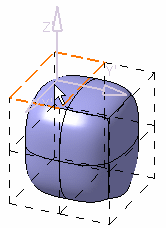
-
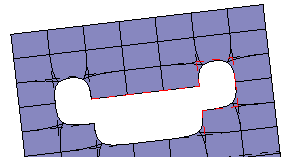
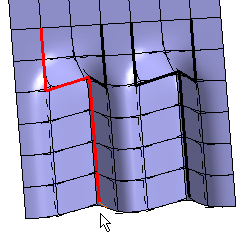
 (Edge Selection): Select edges only.
The compass is aligned along the edge direction.
(Edge Selection): Select edges only.
The compass is aligned along the edge direction.
|
| |
|
| |
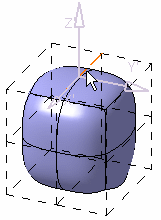
-
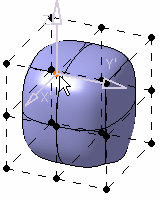
 (Vertex Selection)
select points only: the compass' origin is defined.
(Vertex Selection)
select points only: the compass' origin is defined.
|
| |
|
 |
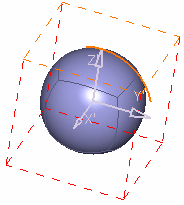
In case of a multi-selection, the compass is
computed using the mean plane computation of the selected elements.
|
| |
|
| |
 |
 |
This capability is also available with
Alignment,
Link, and
Compass Definition commands. |
| |
Using Option Keys
|
| |
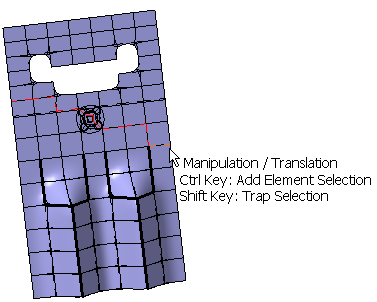
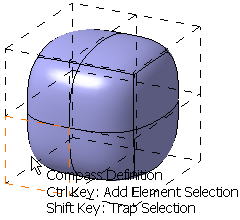
This kind of selection lets you manage the
selection and perform various operations. |
| |
|
| |
-
Press
Shift.
-
Draw the trap.
-
Release
Shift.
|
|
|
 |
Using Two Edge Selection
|
| |
|
|
|
|
 |
-
-
-
-
|
|
|
|
|
|
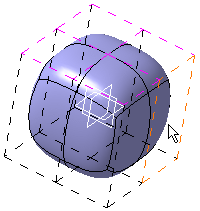
Use of Specific Colors for Selected Elements
|
|
|
 |
 |
| Edge Selection |
Vertex Selection |
|
|
 |
 (All Type Selection): Select any kind of element (faces, edges and points).