
-
Click Face Cutting
 in the Styling Surfaces toolbar.
You can also access this command by pressing ALT+SHIFT+F. -
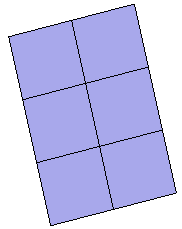
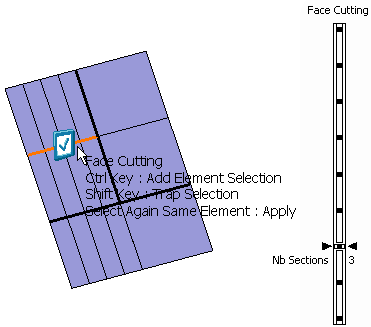
Select the surface to be cut.
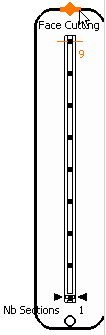
A Tools Palette is displayed: 
The following icons let you: -
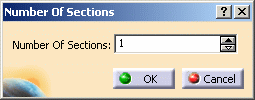
 define the number of
sections.
define the number of
sections.
-
 apply the command. This command is active after the first
selection. Clicking this command validates the selection and further
executes the command.
apply the command. This command is active after the first
selection. Clicking this command validates the selection and further
executes the command.
-
-
Select the edge to be cut.
-
Cut the surface as many times as you wish.

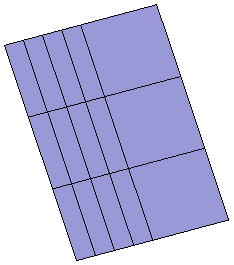
The section insertion propagates to the connected faces. -
Click
Apply (Enter)
to
validate every cut you make or use the Crtl key to multi-select the cut
surfaces and then click Apply
(Enter).
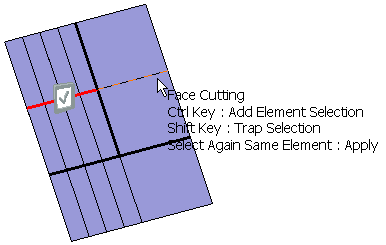
You can see that the surface is cut.
-
During the command execution the selected elements are previewed on the surface.
-
The command is executed, only after the selection is validated using Apply (Enter) command.
-
Apply (Enter) is automatic applied before quitting the command.
-
When the modification is not possible, the Apply (Enter) icon is not active (grayed out).
-
You can undo or redo the changes only after the completion of command; after the Apply (Enter) command. Intermediate selection states cannot be managed by undo/redo.
-
-
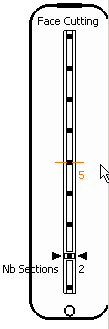
An interactive zone is defined around the slider. When you are in this zone, the pointer position allows to preview the value which is highlighted. A click moves the slider cursor directly to the highlighted value position.
-
Click and drag the pointer in the interactive zone, so that the slider cursor moves on the slider highlighting the value.
-
-
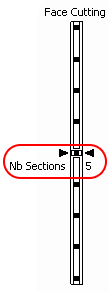
When the cursor is on a value, the value is displayed with more thickness than others for easy identification.
-
The slider can be customized using the anchor point circle at the lower end of the slider. Drag this point across the screen. The preview of the location where the slider can be dropped is displayed. The slider automatically changes its shape according to its position horizontal, vertical or corner.

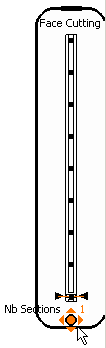
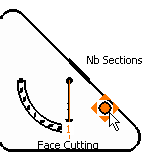
-
The slider can be scaled using the resizing manipulator on top.